

Harnzer Planner is an online Activity planning system.
It includes a Smart Scheduling system which automatically calculatex timelines with start and completion dates with the resources which are required.
It is designed to be simple, easy to learn and be effective in helping you plan and manage projects.
The Basic Concepts
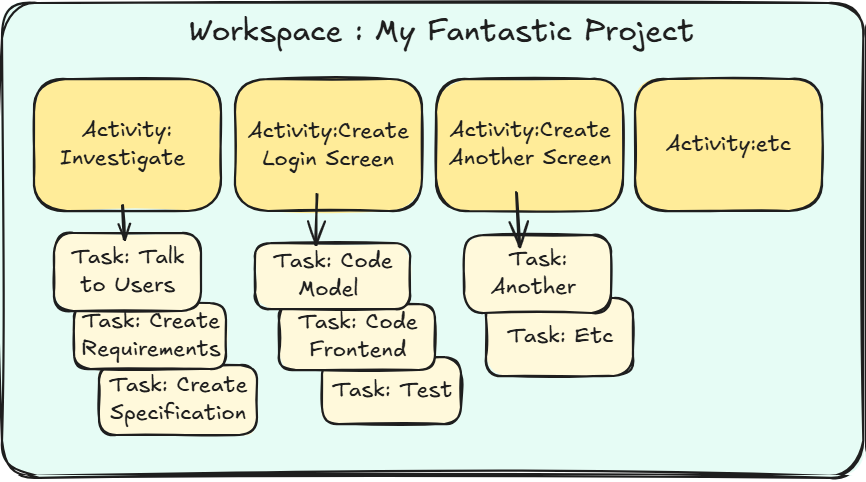
Workspaces : All the work for a project or a number of projects is contained within a Workspace. You can create a number of Workspaces to split projects or you can contain them within onw Workspace.
Activities : An Activity describes something which need to be done in your project. Eg Create Login Screen, Rewrite graph page, etc.
Tasks : An activity is broken down it to Tasks. One Activity can contain one or a number of tasks. Eg for the Activity "Create Login Screen", tasks could be Investigate Requirement, Write Specification, Code Model, Code Frontend , Test. How detailed or not this needs is upto you; You know the team and understand what they need to be able to achieve results.
Resources : task needs people to work on it. Each Task is set to the people who can work on it. I
How to use Harnzer (effectively)
Starting
Create a Workspace : Set your working week and the standard working day in hours.
Set up resources : Resources are people.Set these up - add anyone you might want to work on a project. Within each person you can set up their working days to cater for different work patterns.
Create Activities and Tasks : Activities are what you want to do and consist of one or a number of tasks. Create these and give and estimate of time for each Task. If only specific people can work on a Task, set this up.
Schedule: Click scheduling. All the Tasks will be scheduled, calculating start and end times. This can be viewed on the Timeline page
Updating
As projects progress, extra tasks added, etc you update the data.
Updating Tasks
Tasks : All tasks start with a Status of Backlog or Waiting. Tasks which are in the backlog will not be scheduled. Move any tasks which you are ready to start into waiting. They will then be available for scheduling.
When a task starts set it to started and enter the start date. If a task is already started you can updated the remaining time with a new estimate. You can also update the total estimate if it's going to take longer than the estimate.
This Page is Under Construction
If you have a specific query or question please fill in the contact form below
Contact
Get in Touch
We endeavour to respond to all messages within 24 hours.